 Yakitsuke
 - AI agents
- Cursor
Ask Cursor.
Your camera develops it.
No MCP server to add. Cursor finds Yakitsuke's Skill, runs the command-line tool inside the app, and looks at every preview your camera develops. Codex, Gemini CLI and Claude Code connect the same way.
YouGive DSCF3148 a Japanese film look: pale, a little cyan-green, soft highlights, a bit of grain, like Fuji 400H.
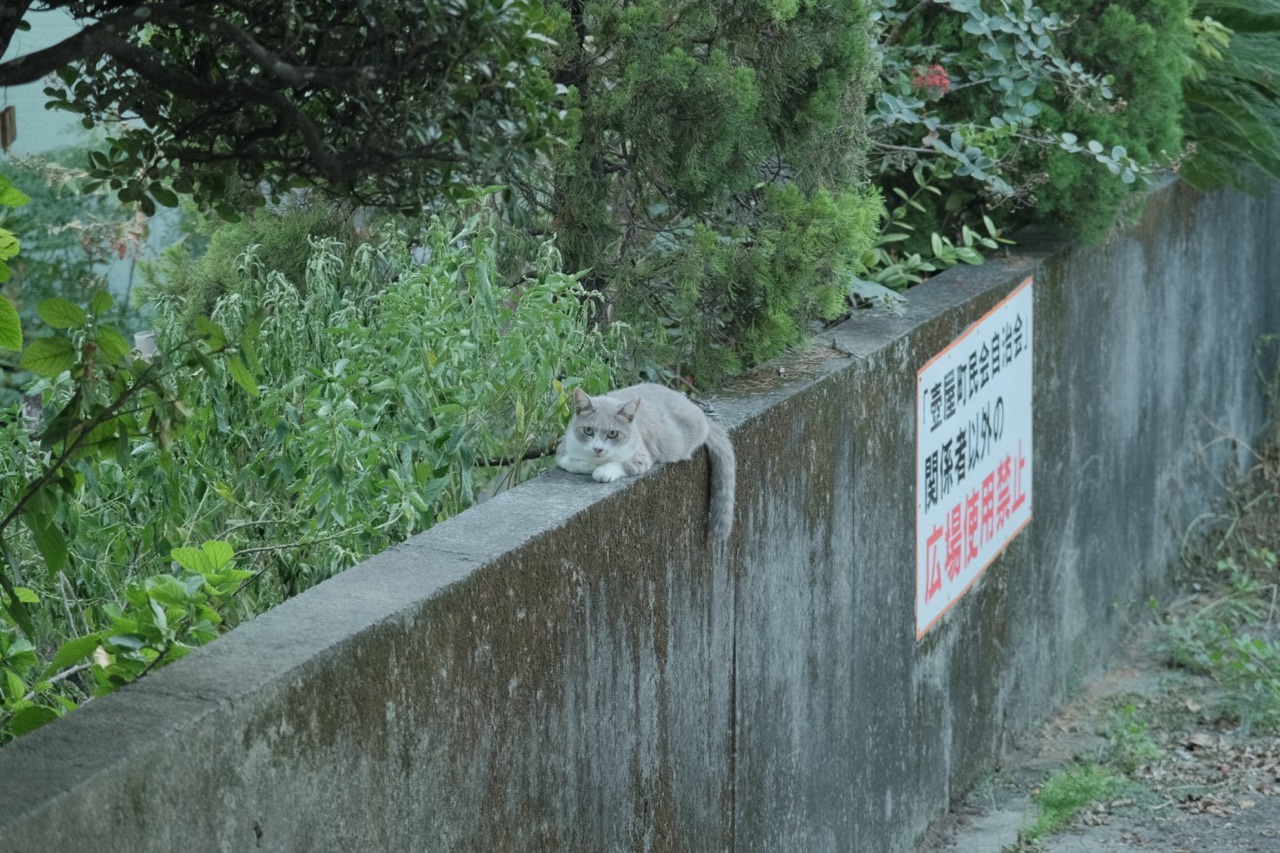
The session
Six rounds, all from the command line.
Cursor had no Yakitsuke tools of its own. Everything below went through yakitsuke-cli, which answers in JSON and writes each preview as a JPEG for the agent to open.
- 6render_preview calls
- 24previews
- 19 sof camera time
- 5 minfrom prompt to answer
Use Yakitsuke to give DSCF3148 a Japanese film look: pale, a little cyan-green, soft highlights, a bit of grain, like Fuji 400H. Try a few very different versions on the camera first, then fine-tune toward the closest. Give me the best one or two settings with previews, and say what's still off. Don't create a recipe or export this time.
First I'll read how Yakitsuke works.
read~/.claude/skills/yakitsuke/SKILL.md
Yakitsuke's tools come two ways: MCP tools, or the command line when there are none.
search MCP toolsyakitsuke
No matches
The target: pale, low contrast, cyan-green, soft highlights, fine grain. I'll check the camera and how DSCF3148 was shot.
yakitsuke-cli camera_status
ready · X-T4 · firmware 2.12 · Yakitsuke 0.3.0-beta.17
yakitsuke-cli get_photoDSCF3148.RAF
Shot on PROVIA, auto white balance, DR400, ISO 1600.
First, four very different film simulations and white balances, to find the direction.
yakitsuke-cli render_preview4 variants · 3.3 s
 Pro Neg. Stddaylight, greenish · 1.3 s, sends the RAF first
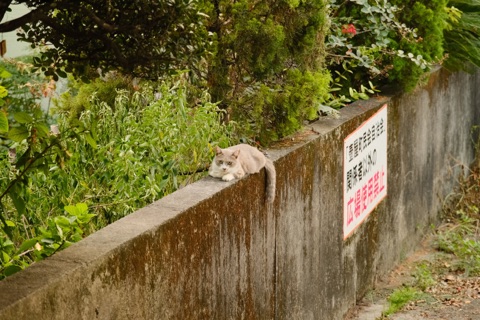 Astiashade, warm pink · 0.5 s
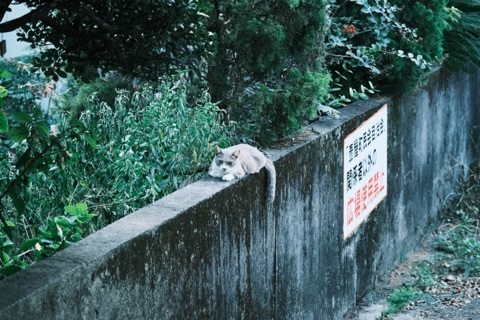 Classic Neg.daylight, cool cyan · 0.5 s
 Eternafluorescent, flat · 0.5 s
4 JPEGs written to the --out folder; Cursor opens each one
Pro Neg. Std is closest: paler, low contrast. Astia is too warm, Classic Neg. too cyan and too hard, Eterna too flat and magenta. Next I'll change the tint and the strength around Pro Neg.
Two rounds on Pro Neg. Std: color −4, highlights and shadows −2
These differ very little, so I'll measure the color of the gray wall and the leaves, rather than risk reading the direction backwards by eye.
swifta script it wrote: the mean color of four patches
wall R 96.8 G 98.0 B 84.0 leaf R 87.7 G 120.6 B 70.9 sign R 141.3 G 160.8 B 161.1 cat R 113.5 G 116.3 B 107.8
yakitsuke-cli render_preview4 variants · 2.5 s
 R −4 B −10.5 s
 R −4 B +10.5 s
 R −5 B 00.5 s
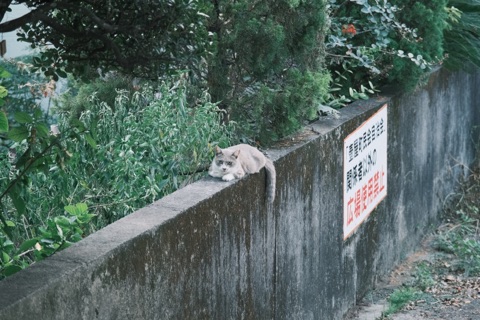 Classic Neg.R −3 B +1 · 0.5 s
The gray wall is still yellow. R −5 B 0 has the clearest green; Classic Neg. goes darker and harder again. Next: fine grain, and blue up one more step.
One round: weak grain, small or large, B +1, sharpness −1
yakitsuke-cli render_preview4 variants · 5.0 s
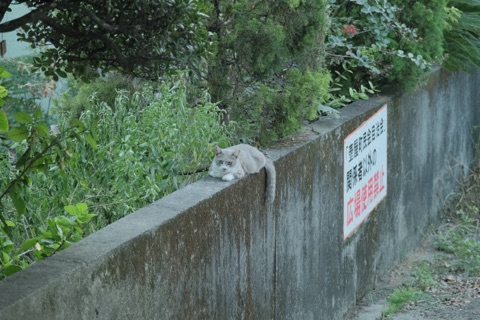 Clarity 0B +1 · 0.5 s
 Clarity −11.7 s
 Clarity −21.7 s
 B 0the alternative · 0.5 s
Closest to 400H: PRO Neg. Std, daylight, R −5 / B +1. The gray wall and the cat's fur take on a little cyan-green, the leaves go paler, the white of the sign isn't hardened, and the grain is fine. Lower clarity made the leaves and the wall hazy, so it stays at 0.
The second choice is the same with B 0: the wall turns more yellow-green and the sign a cleaner white.
I didn't create a recipe or export anything.
The session ran on 28 October 2026 with Yakitsuke 0.3.0-beta.17, Cursor's agent (cursor-agent, model Auto, sandbox on) and an X-T4 on firmware 2.12. Commands, timings and images are what Yakitsuke returned; the paths are shortened. Cursor answered in Traditional Chinese: its replies are translated and shortened, and two of the six rounds are summarized.
The result
Two candidates, and what's still off.
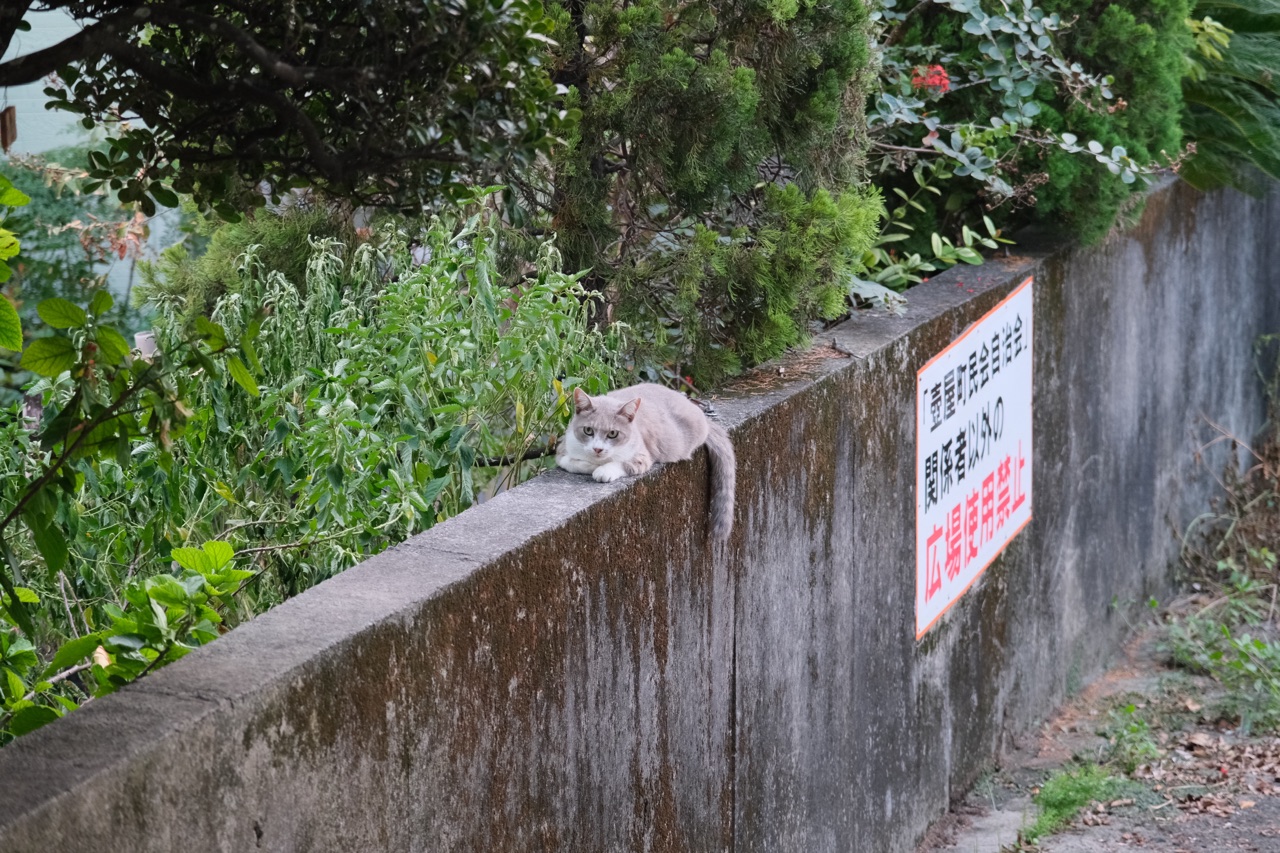
- Film simulation
- PRO Neg. Std
- White balance
- Daylight · R −5 B +1
- Color
- −4
- Highlights
- −2
- Shadows
- −2
- Grain
- Weak · small
- Sharpness
- −1
- Clarity
- 0
- Dynamic range
- DR400, as shot
Candidate B is the same with B 0. Neither was saved as a recipe: the prompt asked for settings and previews only. Every other setting stays as shot.
What's still off, as Cursor put it
- The whole frame turns cyan-green. The cat's gray fur goes green too; 400H tints the leaves and the shadows more and keeps neutral grays close to gray.
- The wall is still a little yellower than the leaves. More blue makes the white of the sign visibly cyan.
- Color −4 is paler than 400H. At −3, the greens in this photo get too solid.
- The grain is the camera's. It's fine, but more regular than film grain. The highlights are softer, without the glow of a scanned negative.
How it connects
No MCP. A Skill and a command.
Agents that can run commands don't need an MCP server. Yakitsuke links its Skill where they look for skills, and the Skill sends them to the command-line tool inside the app.
Finds the Skill
Settings → AI agents links it into the agent's skills folder. Cursor picked it up as soon as the prompt named Yakitsuke.
Looks for MCP
It searched its tools for Yakitsuke's, found none, and followed the Skill to the command line.
Runs yakitsuke-cli
The same tools, names and inputs as over MCP, answered in JSON. If Yakitsuke isn't running, the command opens it in the background.
Opens every preview
render_preview writes JPEGs to the folder in --out. Cursor looked at each one, and measured colors with a script when its eye wasn't enough.
/Applications/Yakitsuke.app/Contents/MacOS/yakitsuke-cli render_preview --photo-id 02f2b85d63a02d67a743072f --max-edge 1400 --out previews/3148 --json '{"variants":[{"label":…,"params":{"filmSimulation":"PRO_NEG_STD","whiteBalance":"daylight","wbShiftR":-3,"wbShiftB":-2,"color":-2,"highlightTone":-1.5,"shadowTone":-1}},…]}'
Set up
Connect Cursor in Settings.
Turn it on
In Yakitsuke, open Settings → AI agents and turn on Let AI agents use Yakitsuke.
Tick Cursor
Tick Cursor, Codex, Gemini CLI and others and press Connect selected. The Skill is linked at ~/.agents/skills and updates with Yakitsuke.
Ask in Cursor
Name Yakitsuke and say what you want. There's nothing to add to Cursor's MCP settings, and Yakitsuke doesn't need to be open first.
More to ask
Other sessions
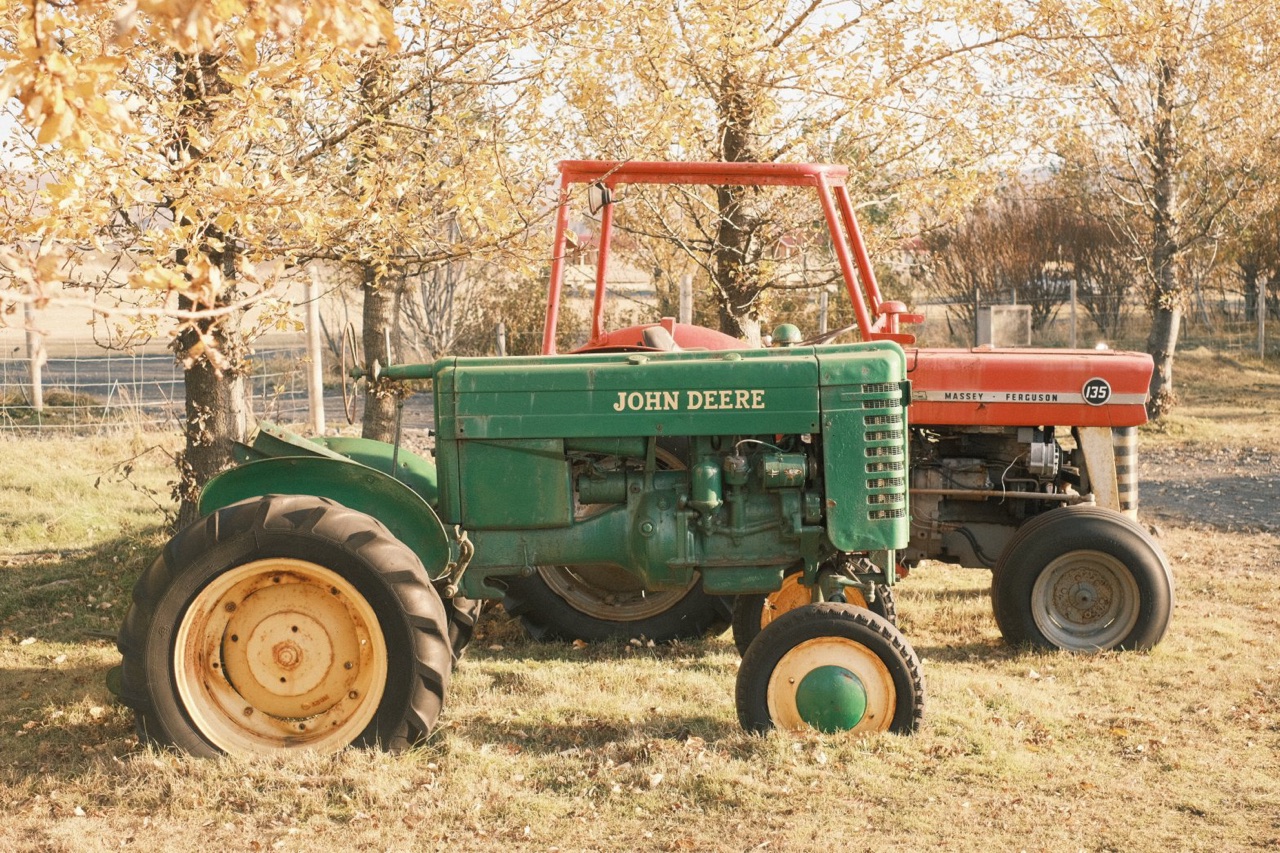
Turn a description into a recipe
Like a faded postcard from the seventies.See the session
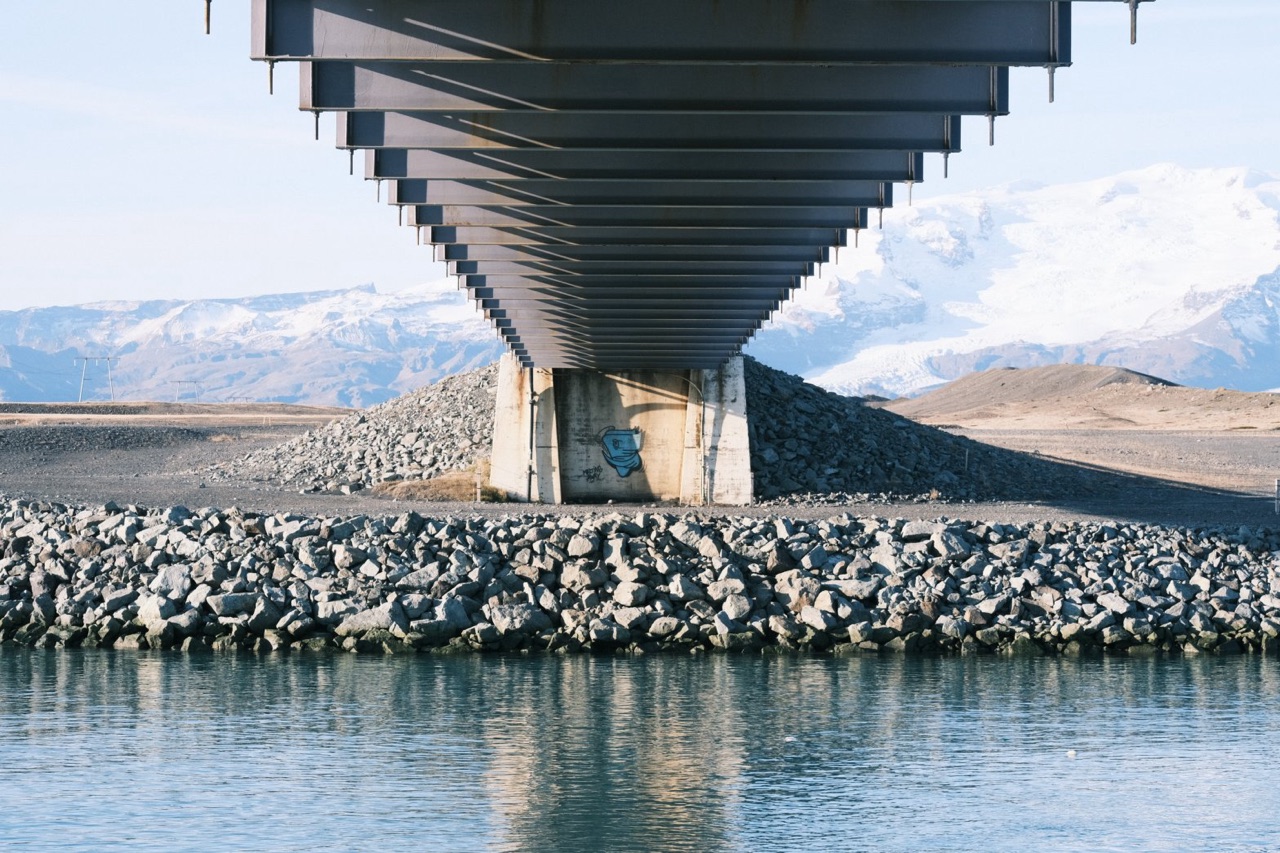
Match a reference photo
Make the horse look like this.See the session
Develop a whole trip in one sentence
Convert everything from October 2024 with Faded Postcard.See the session
Adjust a recipe you already have
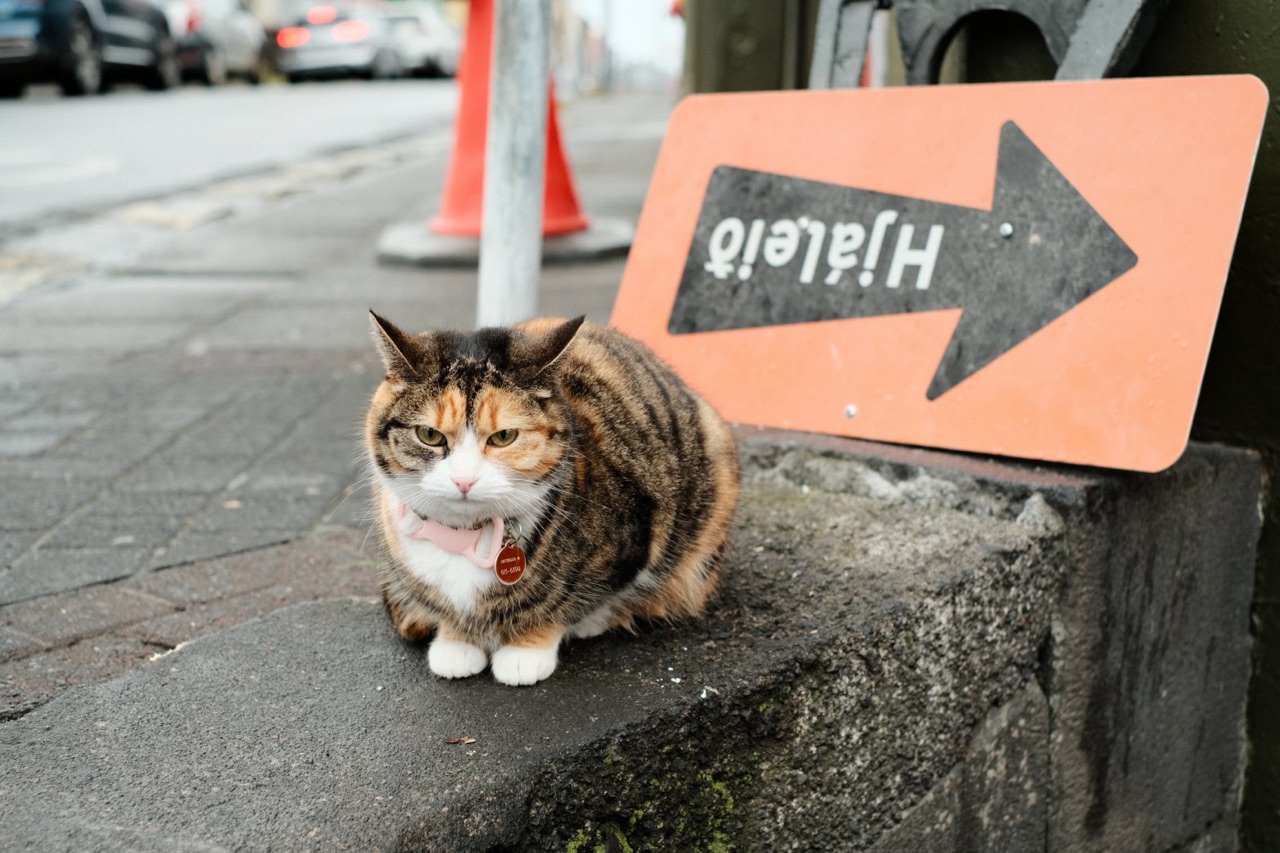
Warm the cat up, but keep the street gray.See the session