 Yakitsuke
 Describe the look.
The camera develops it.
Connect an AI app such as Claude to Yakitsuke and say what you want in plain words. The agent tries settings on your camera's own processor, looks at what comes back, and keeps going until it's close. Then it saves the recipe, or develops the whole folder.
Optional, and off until you turn it on. Works with AI apps that use MCP tools, such as Claude Desktop and Claude Code.
Make a film simulation recipe for this one: a faded postcard from the seventies. Warm, soft contrast, washed-out color, a bit of grain.
render_preview4 variants · 3.0 s
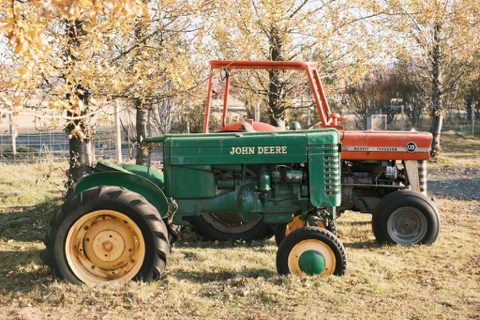 Classic Neg.
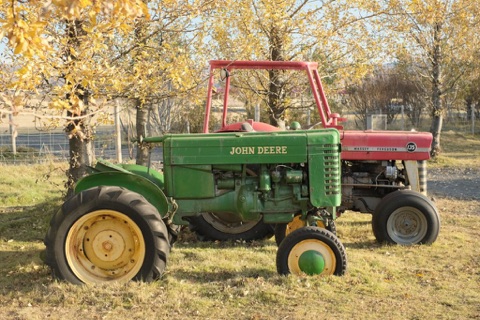 Pro Neg. Std
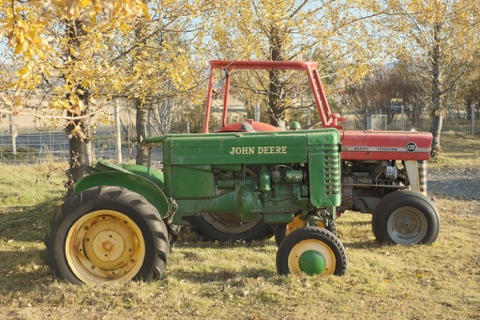 Eterna
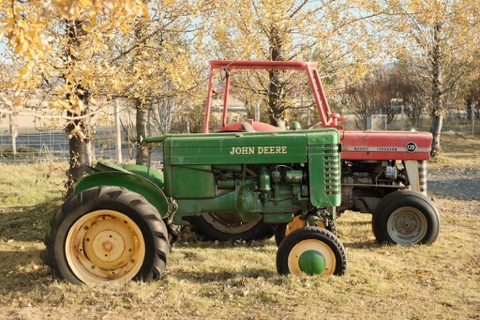 Classic Chrome
What you can ask
Four things to ask it.
Each one is shortened from a real session with Claude, Yakitsuke and an X-T4. Every image is what the camera developed, untouched.
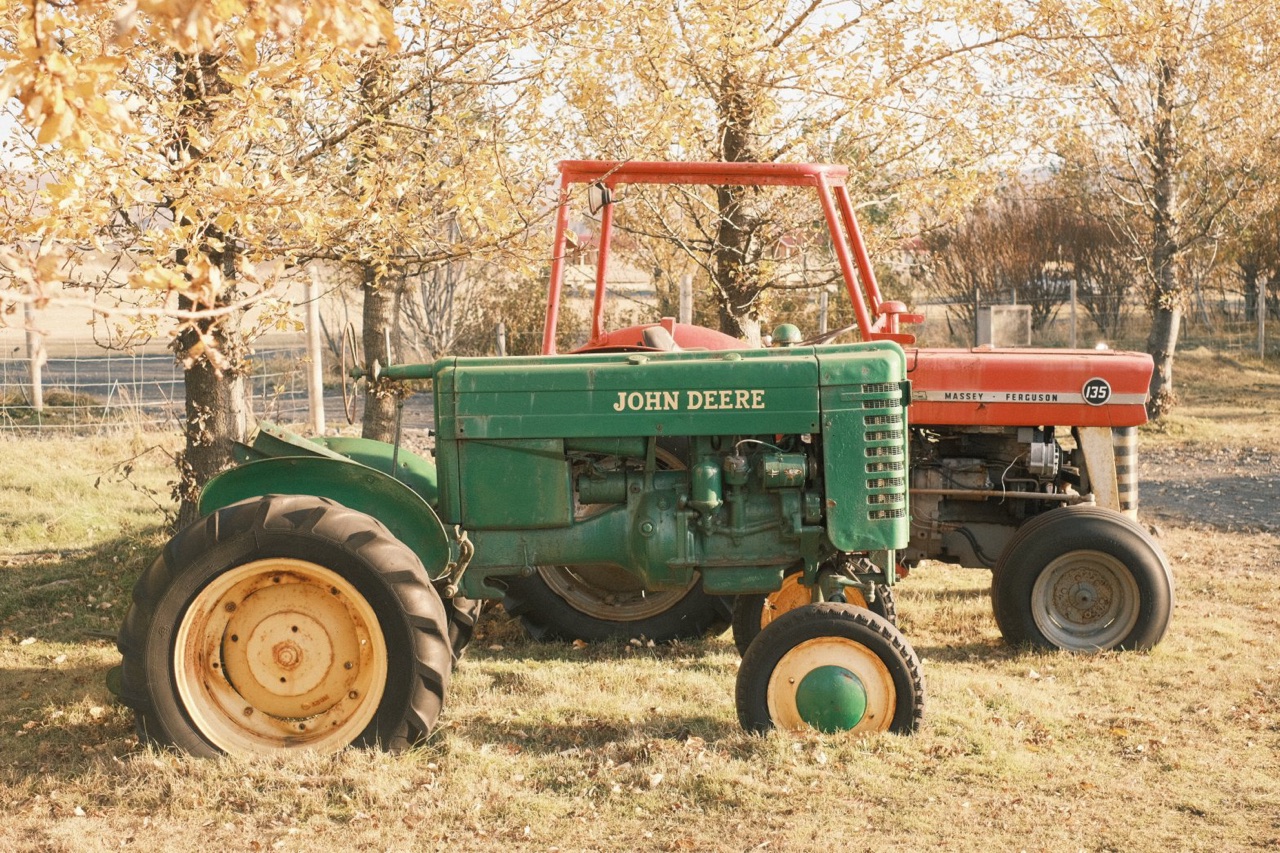
Turn a description into a recipe
Like a faded postcard from the seventies: warm, soft, a bit of grain.See the session
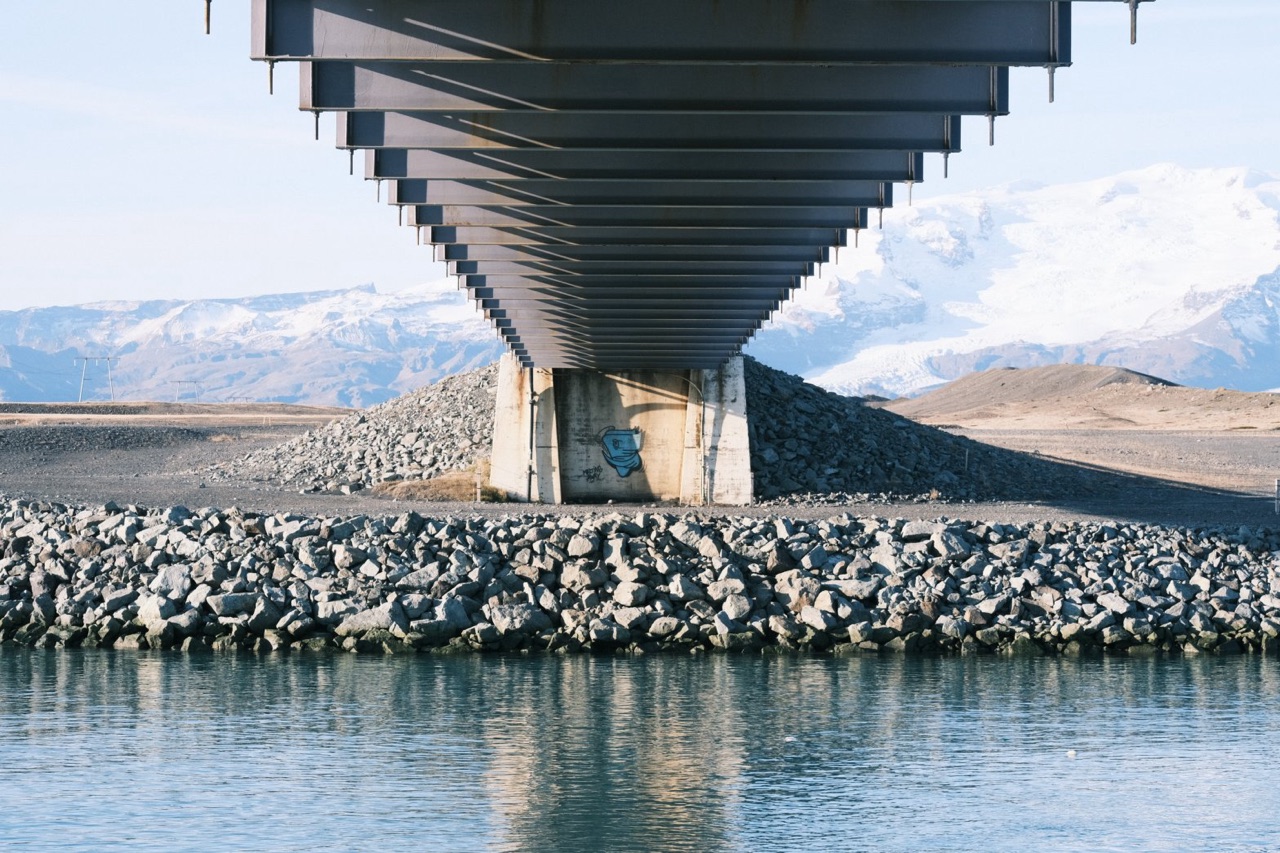
Match a reference photo
Make the horse look like this.See the session
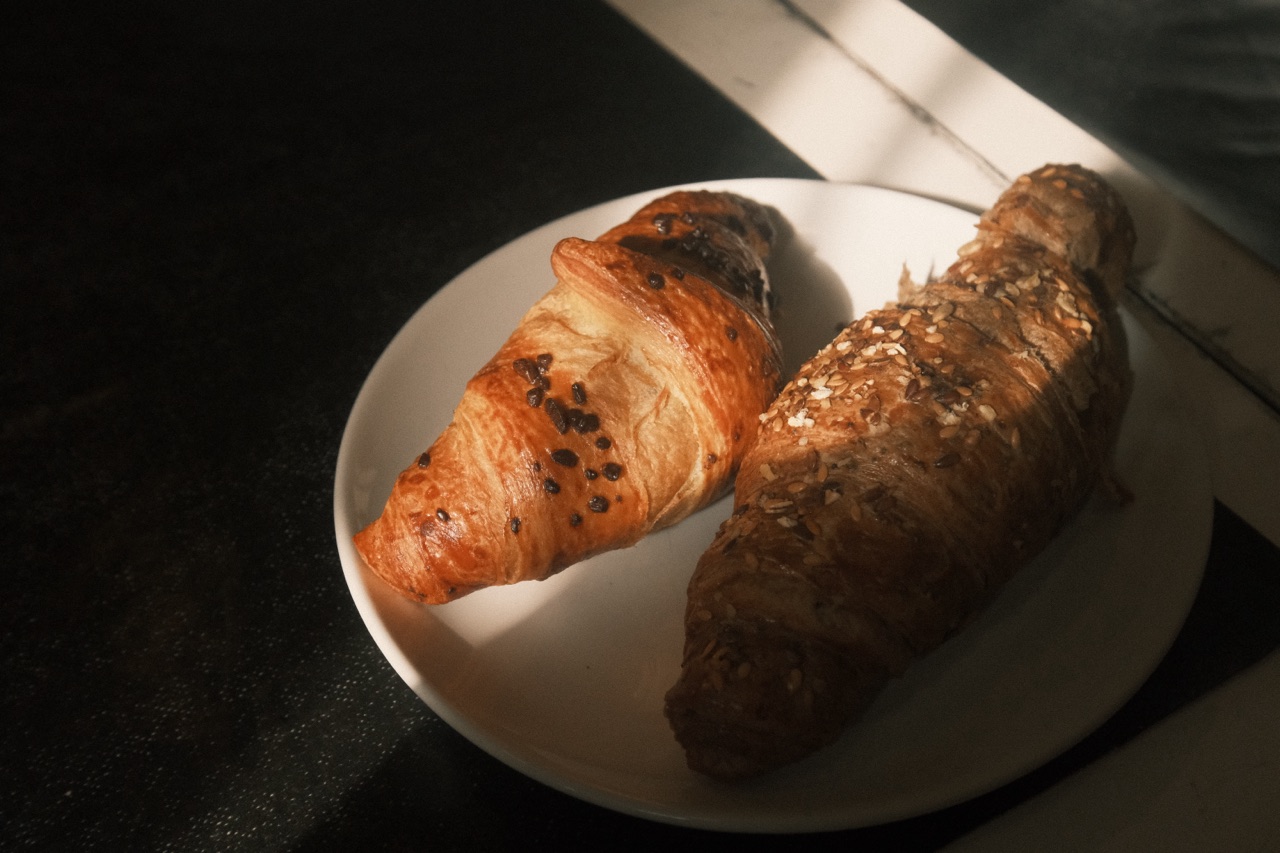
Develop a whole trip in one sentence
Convert everything from October 2024 with Faded Postcard.See the session
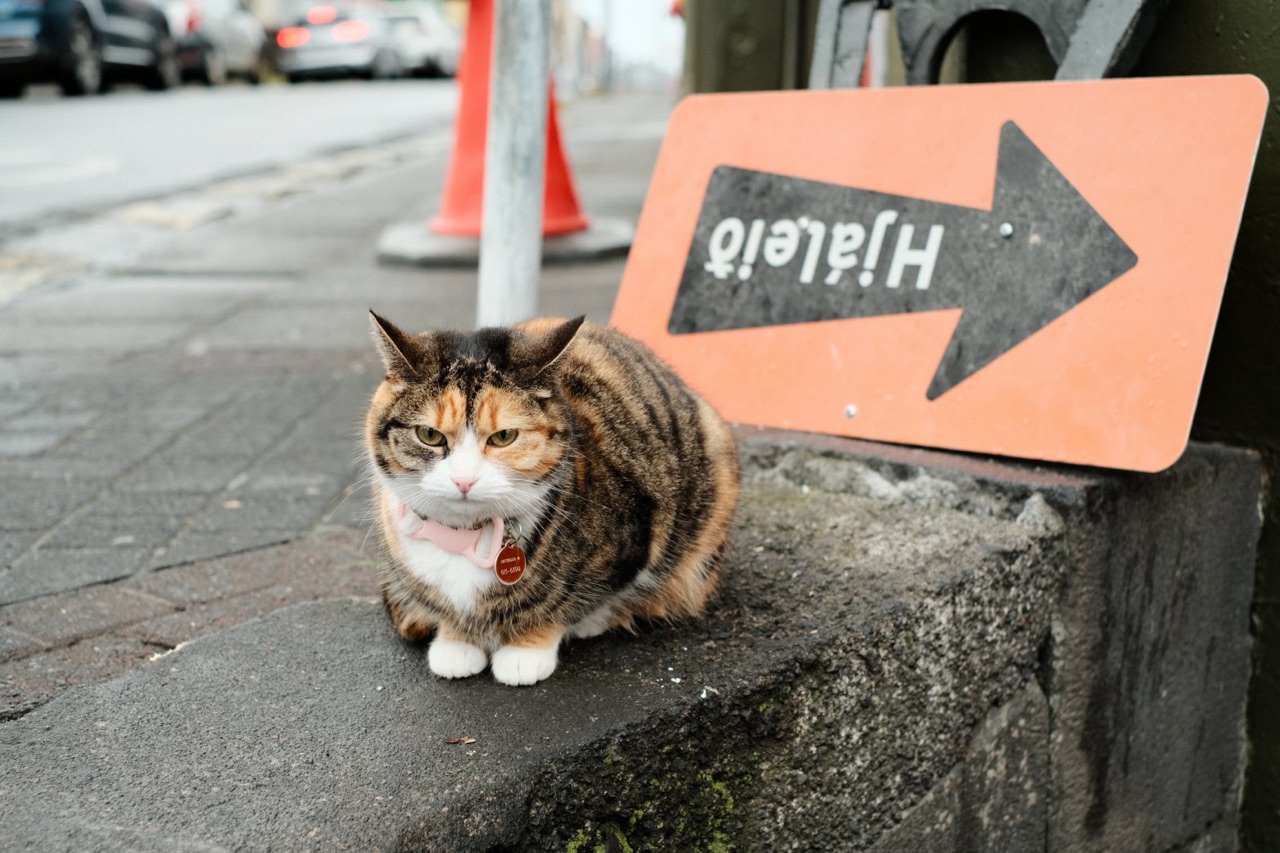
Adjust a recipe you already have
Warm the cat up, but keep the street gray.See the session
How it connects
Your camera, your Mac, and the AI app you choose.
Yakitsuke offers its tools to AI apps on your Mac over MCP, the standard that Claude and other AI apps use for tools. The AI app decides what to try. Yakitsuke has the camera develop it.
- YouSay what you want, in your own words and language.
- The AI appClaude Desktop, Claude Code or another MCP app. Picks the settings and judges the previews.
- YakitsukeRuns each tool on your Mac, with your library, recipes and export settings.
- Your cameraDevelops every preview and every file, over the USB cable.
What the agent can do
- camera_status
- Check that the camera is connected and ready.
- list_photos
- Find photos by folder, date, rating, film simulation, or whether they've been exported.
- get_photo
- Read a photo's shooting info and the settings it was shot with.
- render_preview
- Have the camera develop one photo up to four ways, and look at the results.
- list_recipes
- Read your saved recipes.
- create_recipe
- Save a recipe to your library.
- export_batch
- Develop up to 50 photos full size with a recipe, using your export settings.
- add_folder
- Add a folder of RAF files to your library.
What it can't do
- Write the camera's custom settings (C1–C7). That stays in Yakitsuke, which backs them up first.
- Replace or delete files. Every export is a new file, next to its RAF unless you chose another folder.
- Change your RAF files. They are only read.
- Work on its own. The tools are there only while Yakitsuke is open with AI agents turned on.
Set up
Three steps in Settings.
You need Yakitsuke, a supported camera, and an AI app that can use MCP tools. All of it is under Settings → AI agents.
Turn it on
Open Yakitsuke with the camera connected, and turn on Let AI agents use Yakitsuke.
Connect your AI app
Claude Desktop: click Add to Claude Desktop, then restart Claude Desktop. Claude Code: copy the command shown there and run it in Terminal. Other MCP apps: copy the configuration.
claude mcp add --transport stdio --scope user yakitsuke -- /Applications/Yakitsuke.app/Contents/MacOS/yakitsuke-mcpAdd the Skill
Recommended. Export Skill… saves a zip that teaches the agent how to tune a look on the camera: a few variants per round, coarse to fine.
Claude Desktop: turn on code execution and file creation in its settings, then upload the zip under Skills. Claude Code: unzip it into ~/.claude/skills/.
Privacy
What the AI app sees.
Yakitsuke itself never talks to an AI service. The AI app you connect sees what its tools return, and may send that to its provider.
Questions
Good to know
- Which AI apps work?
- Apps that can use MCP servers on your Mac. Claude Desktop gets a one-click setup and Claude Code a command to copy; other apps take the standard configuration. We test with Claude.
- Does it cost extra?
- Not in Yakitsuke: the agent tools are free during the beta. Your AI app has its own plans and limits.
- Is the agent always right?
- It judges the previews by eye, as you would, and shows you its best one or two before saving anything. You can keep adjusting the recipe in Yakitsuke afterwards.
- How long does it take?
- The camera's part is quick: about half a second per preview on an X-T4, 1.7 s when clarity is set, and about 3 s per photo for a full-size export, counting the time to send the RAF and save the file. In the sessions on this site that came to 11–33 seconds per look. The rest is the AI app thinking between rounds, which depends on the app and the model.
- Does it work without the camera?
- In trial mode the agent can preview with a simulated camera, but those previews are rough adjustments, not film simulations, and it can't export.